![VS-Logo-1.jpg]](https://support.vsware.ie/hs-fs/hubfs/VS-Logo-1.jpg?height=40&name=VS-Logo-1.jpg)
- Go to the students profile
- Click the 'Note' tab on the left hand side
- Go to 'Actions' and select 'New Note'
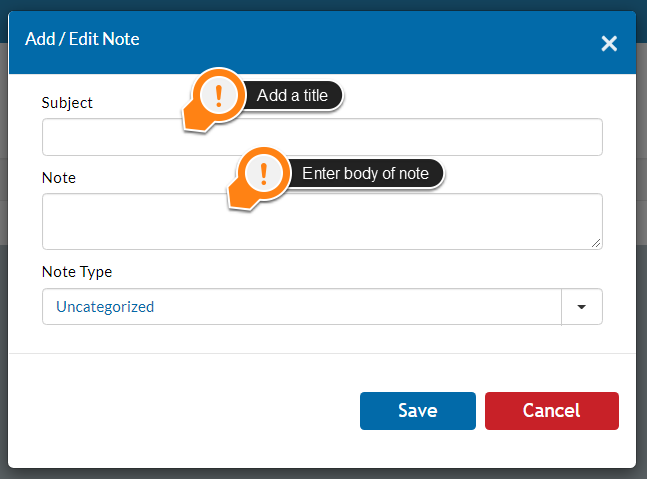
- A pop up will then appear for you to fill in the details for the note. Type in a title for the note and the note itself. Click Save. The note should then appear in the list of notes
- All student notes can be viewed from the same 'Note' tab on their individual profile
- To create a new category for your notes, go to Settings>Enums>Edit Pencil next to Student Note Type>Order= 1,2,3,4, etc.(the order in which the notes appear #1 will be first,#2 will be second, etc.); Value= (Name of note); Description= (Any other details you want to add)>Save.
- Once you click save, you can go back to your Student's profile>Notes>Actions>New Note>Select your new category>Save