![VS-Logo-1.jpg]](https://support.vsware.ie/hs-fs/hubfs/VS-Logo-1.jpg?height=40&name=VS-Logo-1.jpg)
To return to the full list of Student App guides, click here.
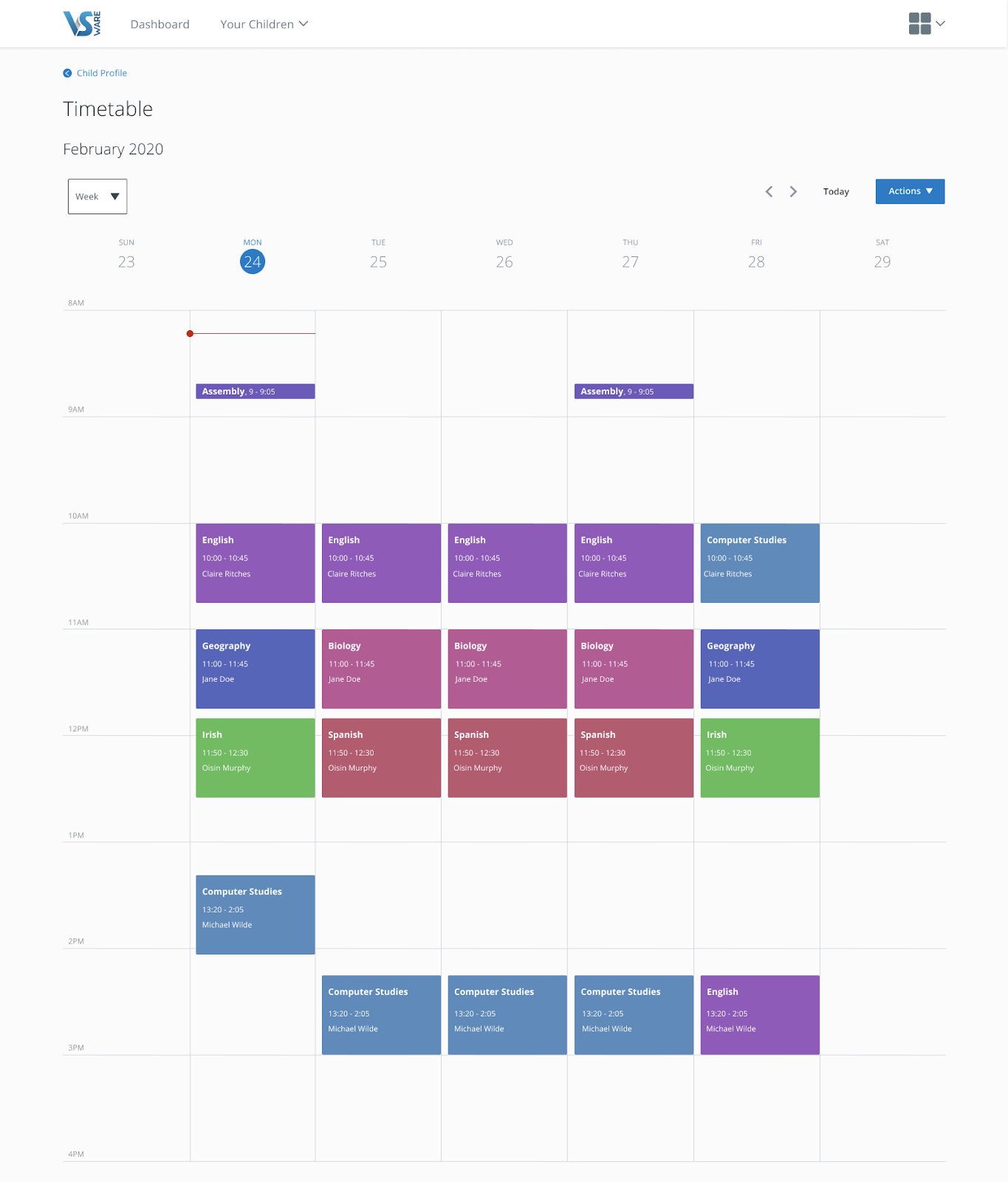
The Timetable screen will allow you to keep track of your daily routine. The red line will indicate the current time of day, so you can see at a glance which class you should currently be in.
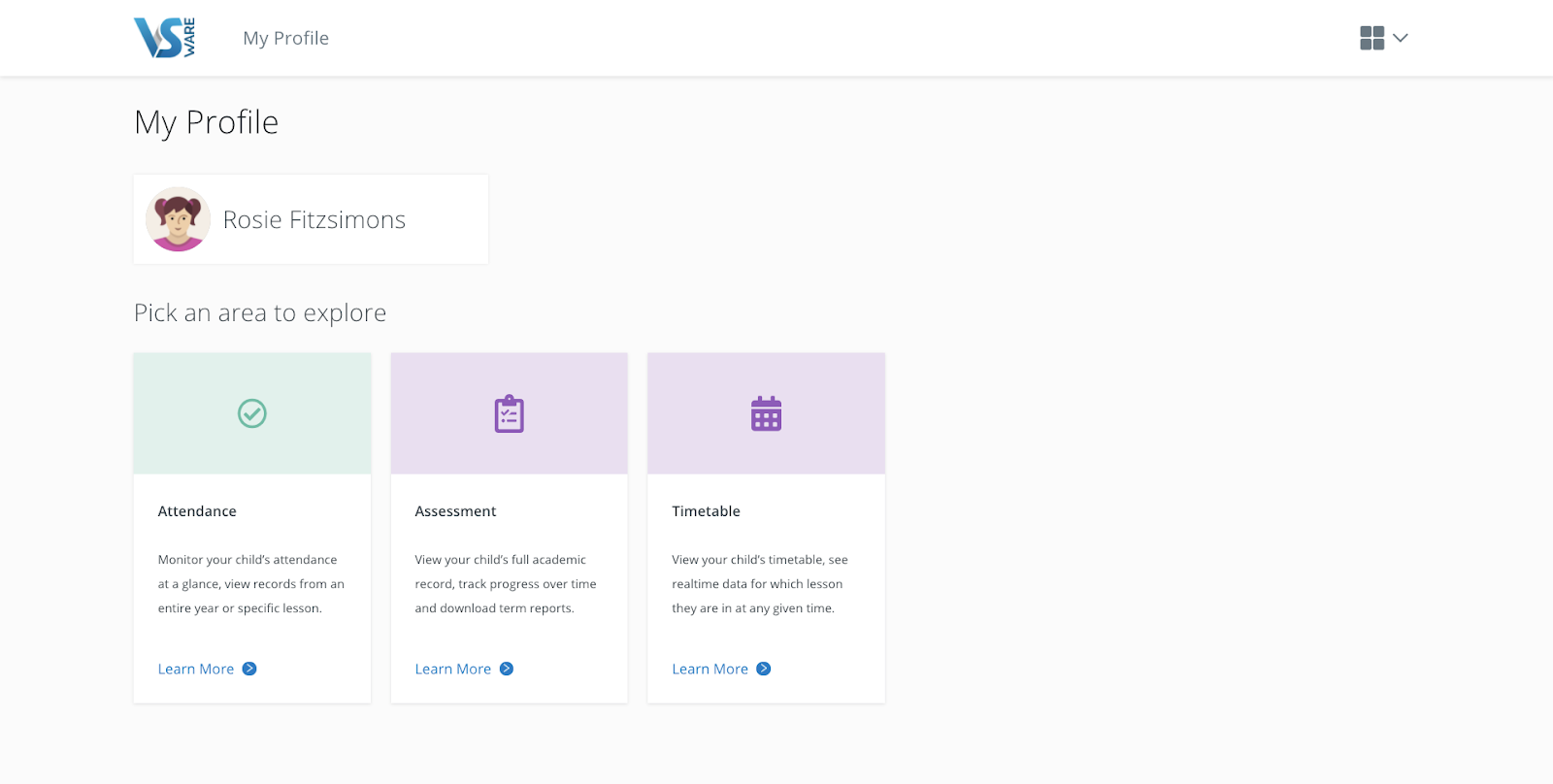
To get to the Timetable page, click 'learn more' under the Timetable card.
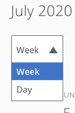
- In the Timetable screen, you can view a week or day using the dropdown on the top left corner of the screen.
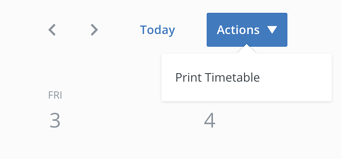
- Use the Actions button on the right to print the timetable
- Hit Today to bring you back to today's view.